Pay applications by Constructable
Construction pay application software for general contractors
Subs bill against their schedule of values, your team approves each invoice in order, and the owner pay app starts from their billing. Subs submit without buying a seat because we do flat pricing with unlimited users.
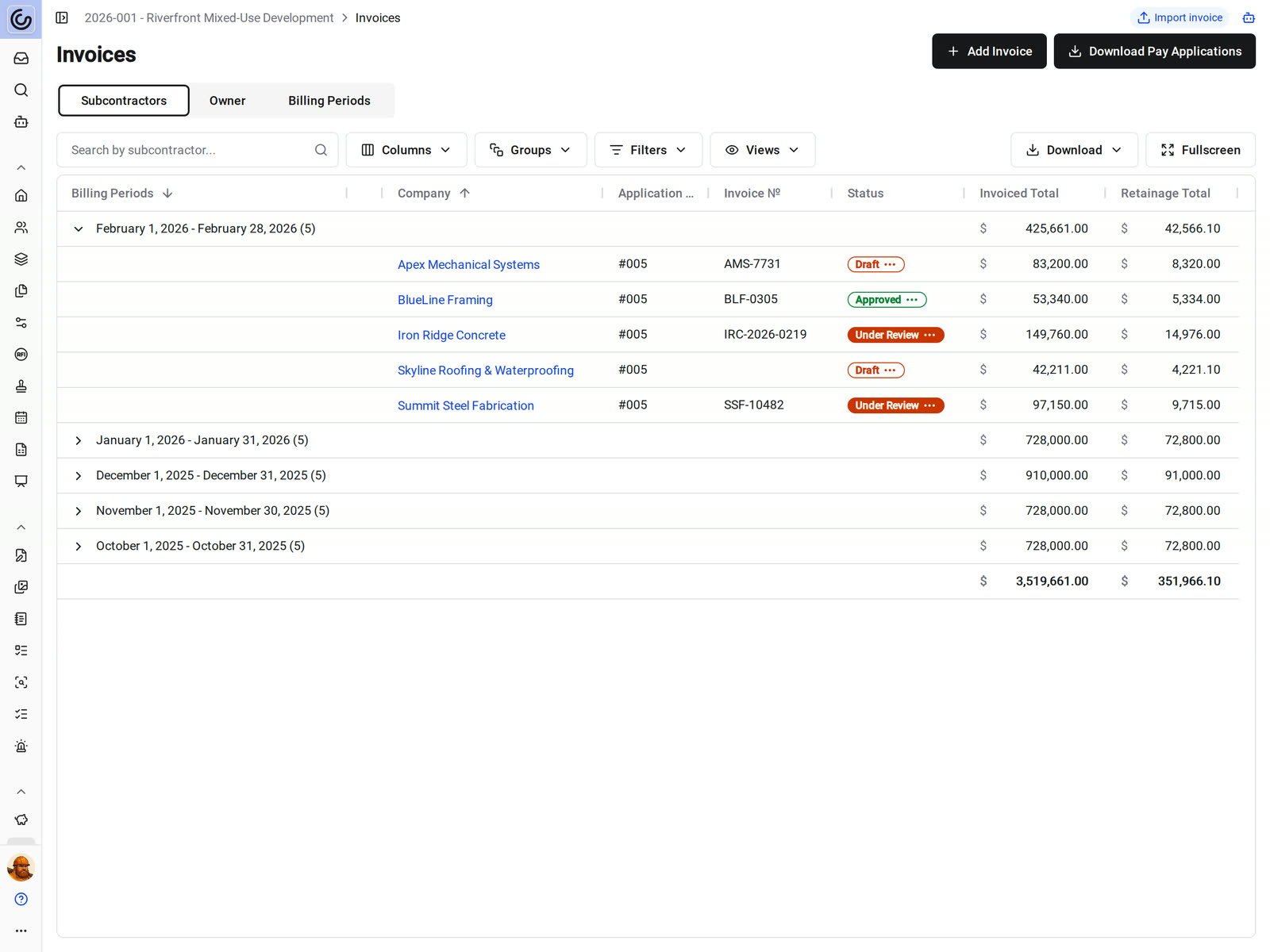
Billing periods
Everyone bills on the same cycle
Set each billing period's start, end, and due dates. Only the period that contains today takes new invoices, unless someone has permission to bill into a closed one.
• Closing the month: group the Subcontractors tab by billing period and see every invoice's status for the cycle
• One period at a time: a sub can't start the next invoice on a contract until the last one is approved
• Across every job: the organization-wide invoices report lists invoices from all of your projects
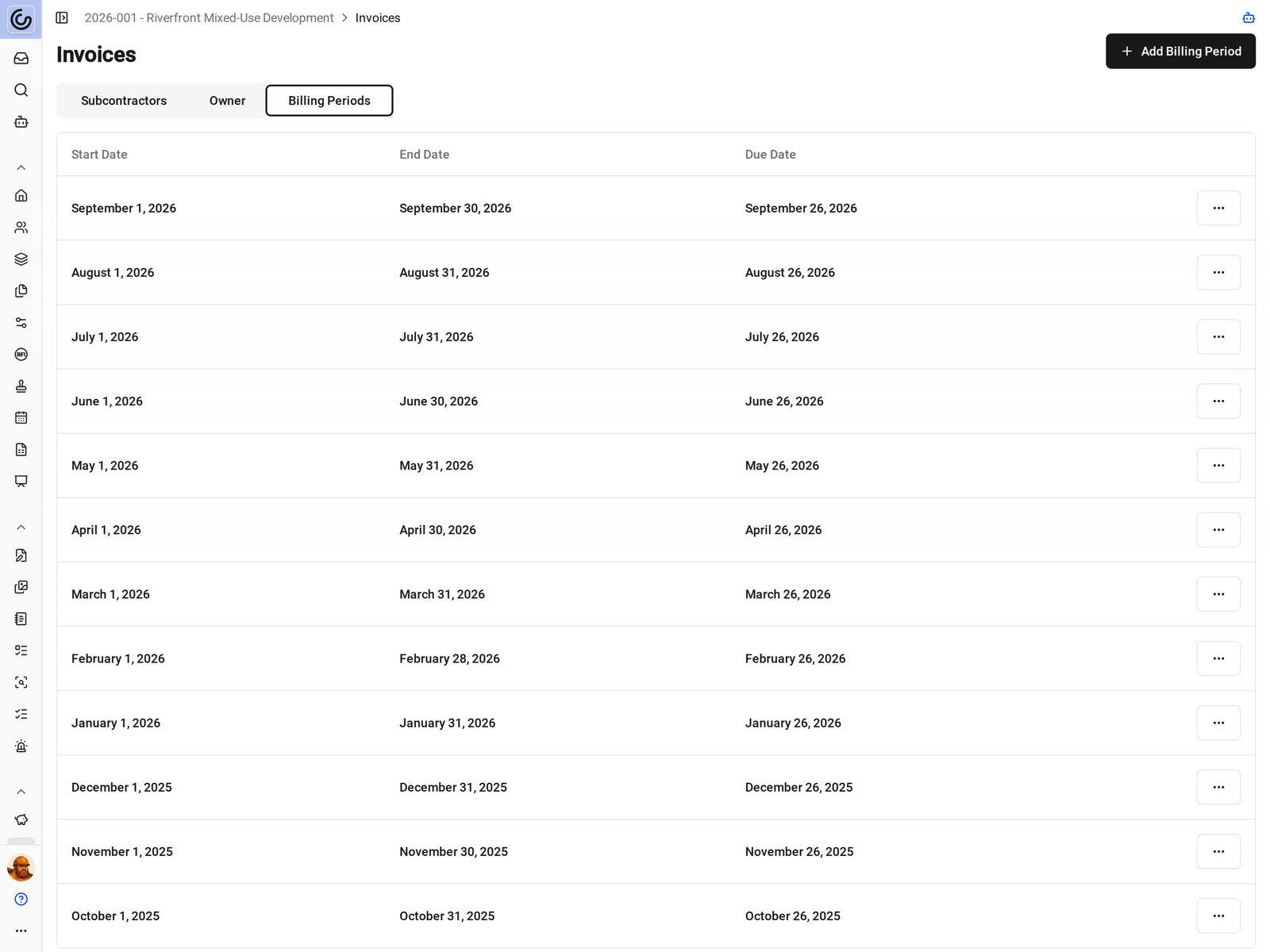
Subcontractor invoices
Subs submit their own pay apps against the SOV
Subcontractors enter work completed, materials stored, and retainage on each SOV line of their commitment, attach their backup, and submit from a desktop, a phone, or the Constructable app.
• A change order lands mid-job: each line's billable amount includes the change orders billable by the end of the period
• Releasing retainage: Release All Retainage releases what's held on every line in one step
• Something is missing: Submit Invoice says why it's blocked, such as a prior invoice that isn't approved or an upload still running
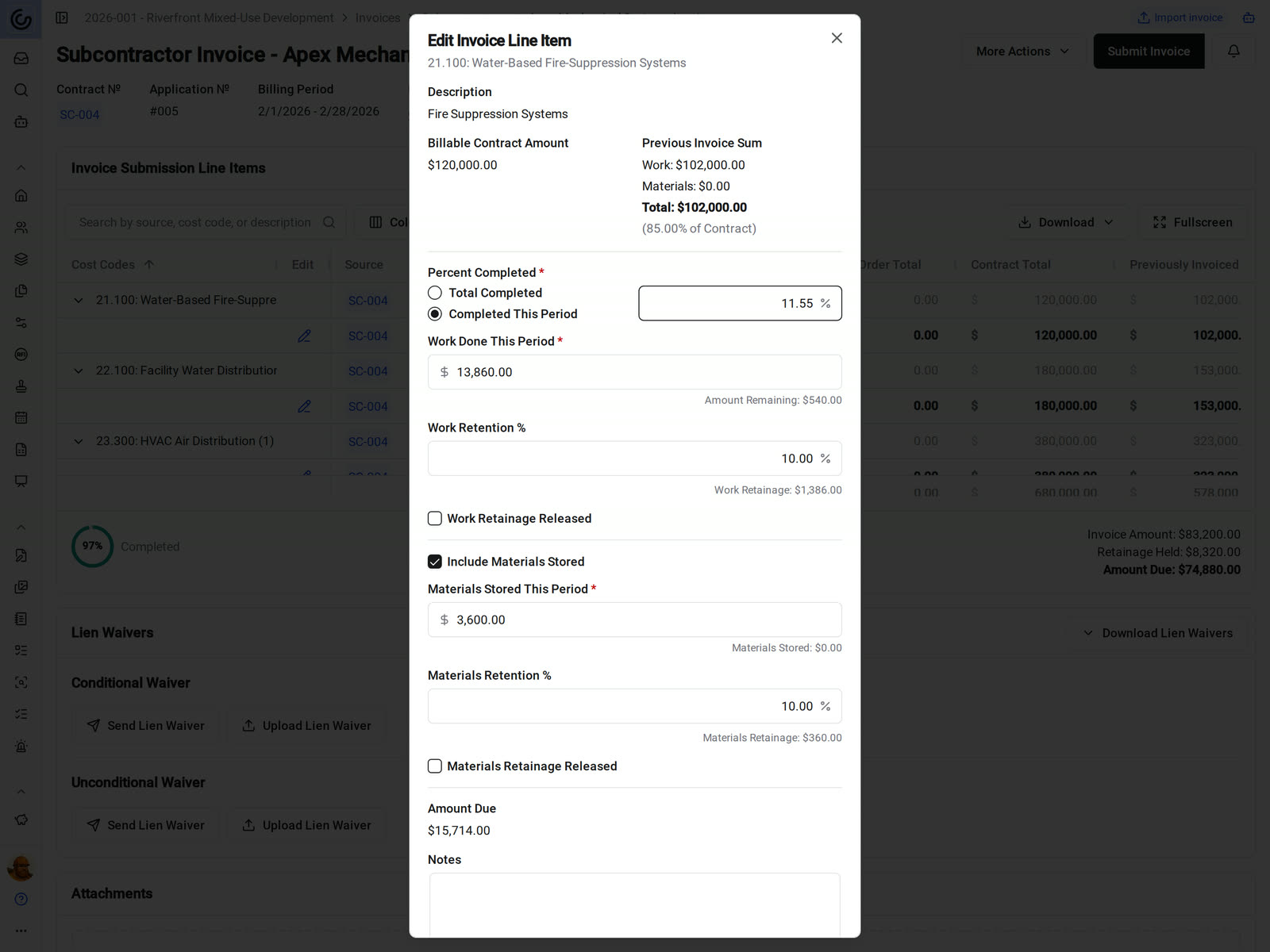
Approvals
Approvals in the order your company signs off
List your approvers in order in Project Settings. A submitted subcontractor invoice waits on the first approver, and each step opens only after the one before it is approved.
• The PM approves, then the controller: each approver approves or rejects their step and can add a comment
• Something's wrong: rejecting sends the invoice back to Draft, and earlier approval runs stay on the record
• An approver is out: anyone with permission to approve on behalf of others can act on their step
• Final approval: locks the invoice number and date and saves the snapshot the payment application prints from
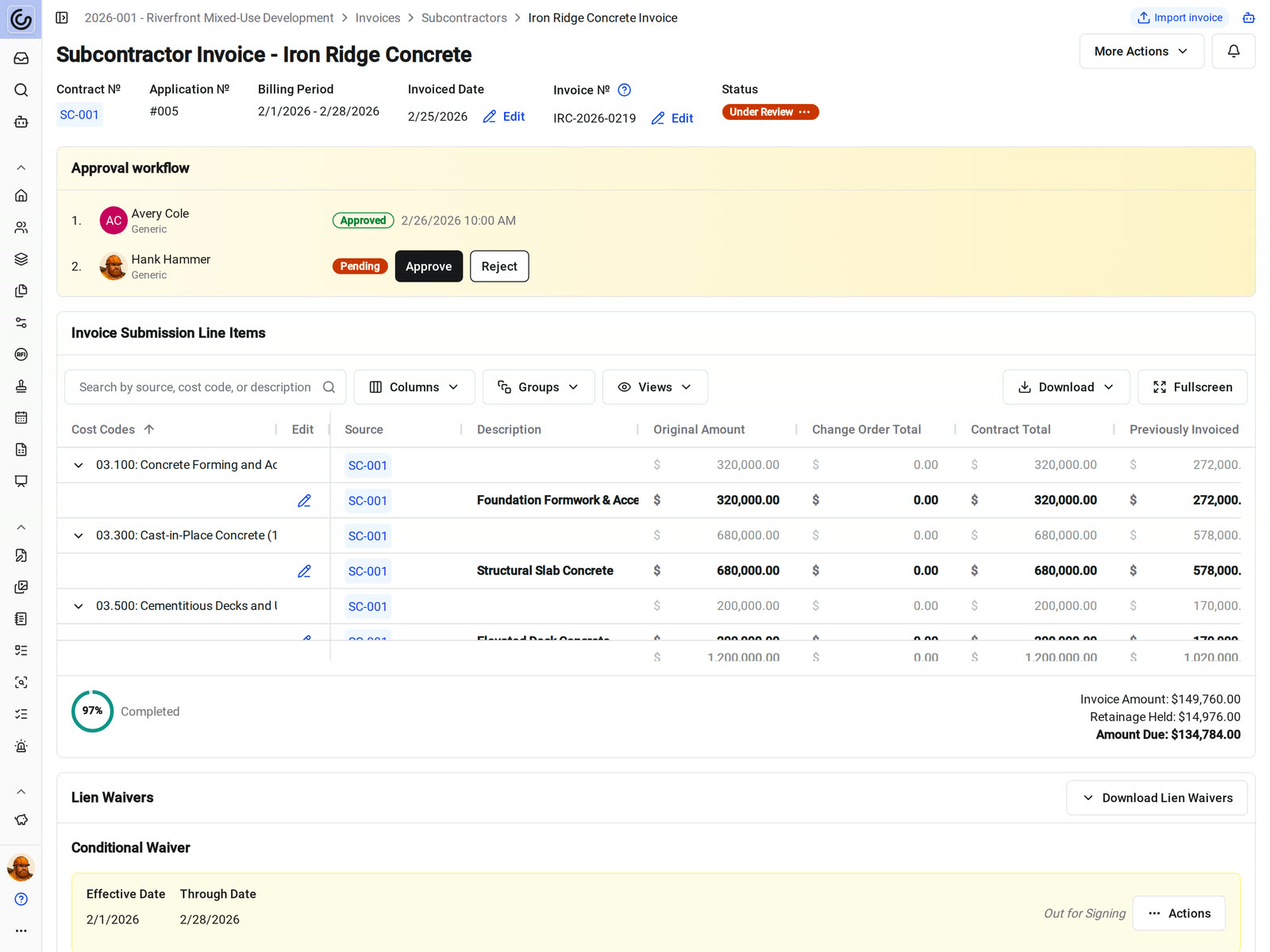
Lien waivers
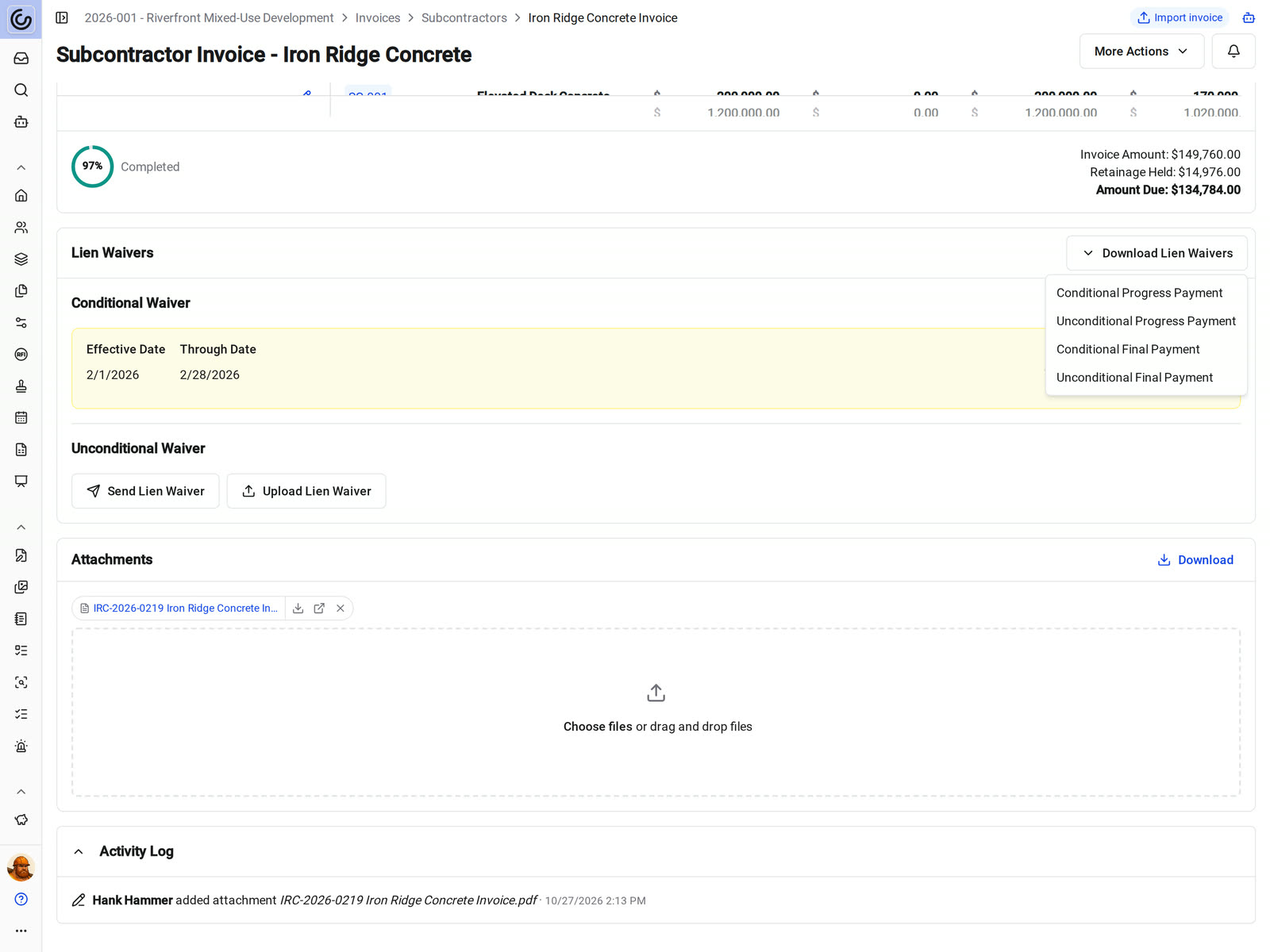
Lien waivers on every pay app
Each invoice carries its own conditional and unconditional waiver, and each waiver keeps its own status. An approved invoice still shows a waiver that hasn't been signed.
• Collecting from subs: send a waiver for signing, let the sub sign their own, or upload a signed copy
• Need the form: download a conditional or unconditional, progress or final waiver filled in from the invoice
• Billing the owner: create waivers on owner invoices with your own signers
Owner billing
Build the owner pay app from your subs' billing
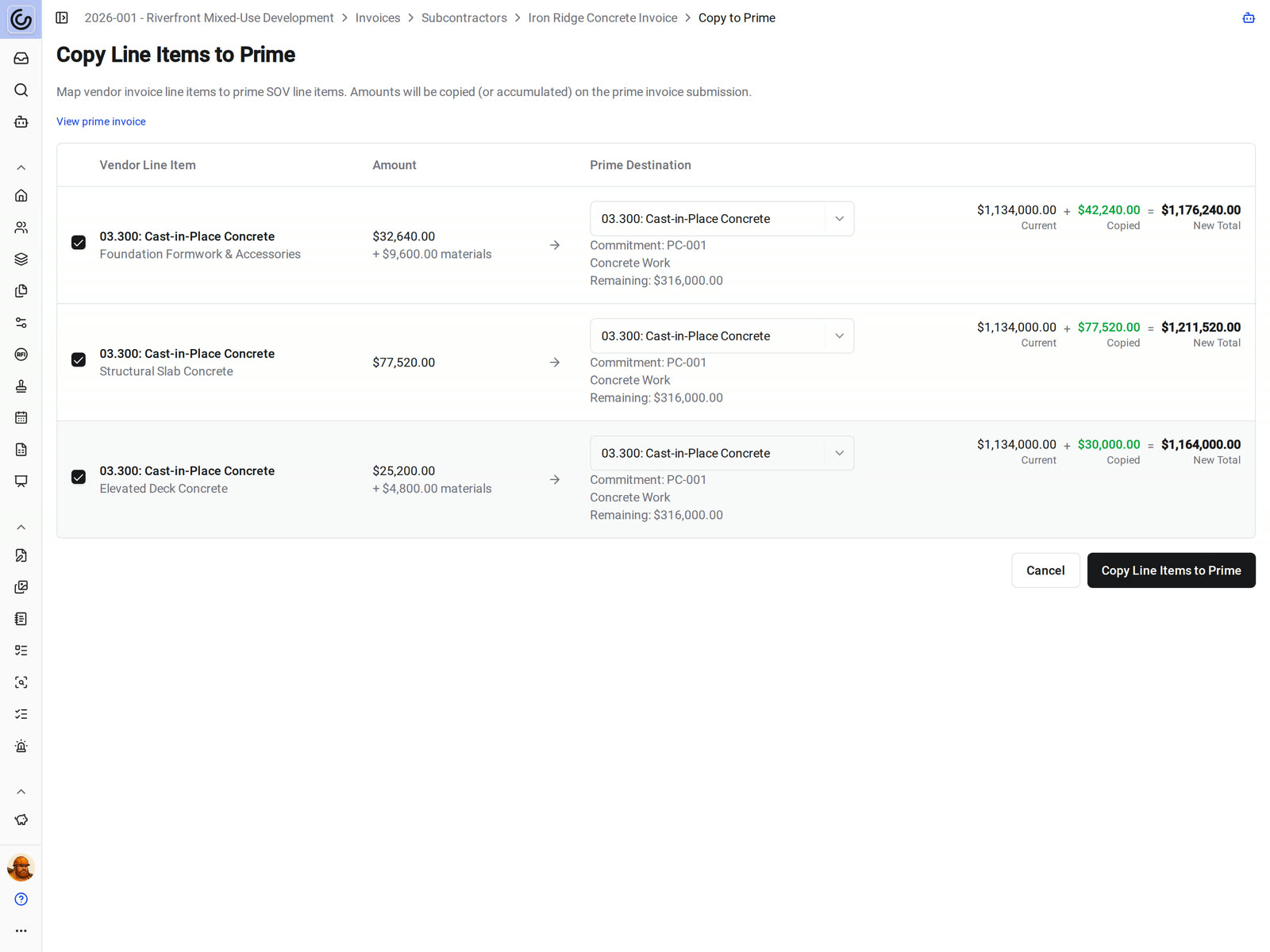
Copy Line Items to Prime maps each line of a subcontractor invoice to a line on your prime contract SOV and adds the amounts to the draft owner invoice for the same period.
• Several subs bill this month: copy each one into the same draft owner invoice
• Before it goes out: check the current, copied, and new total on each prime line, then adjust for your contract and markup
• Cost codes stay internal: hide budget codes on owner payment applications
Payment applications
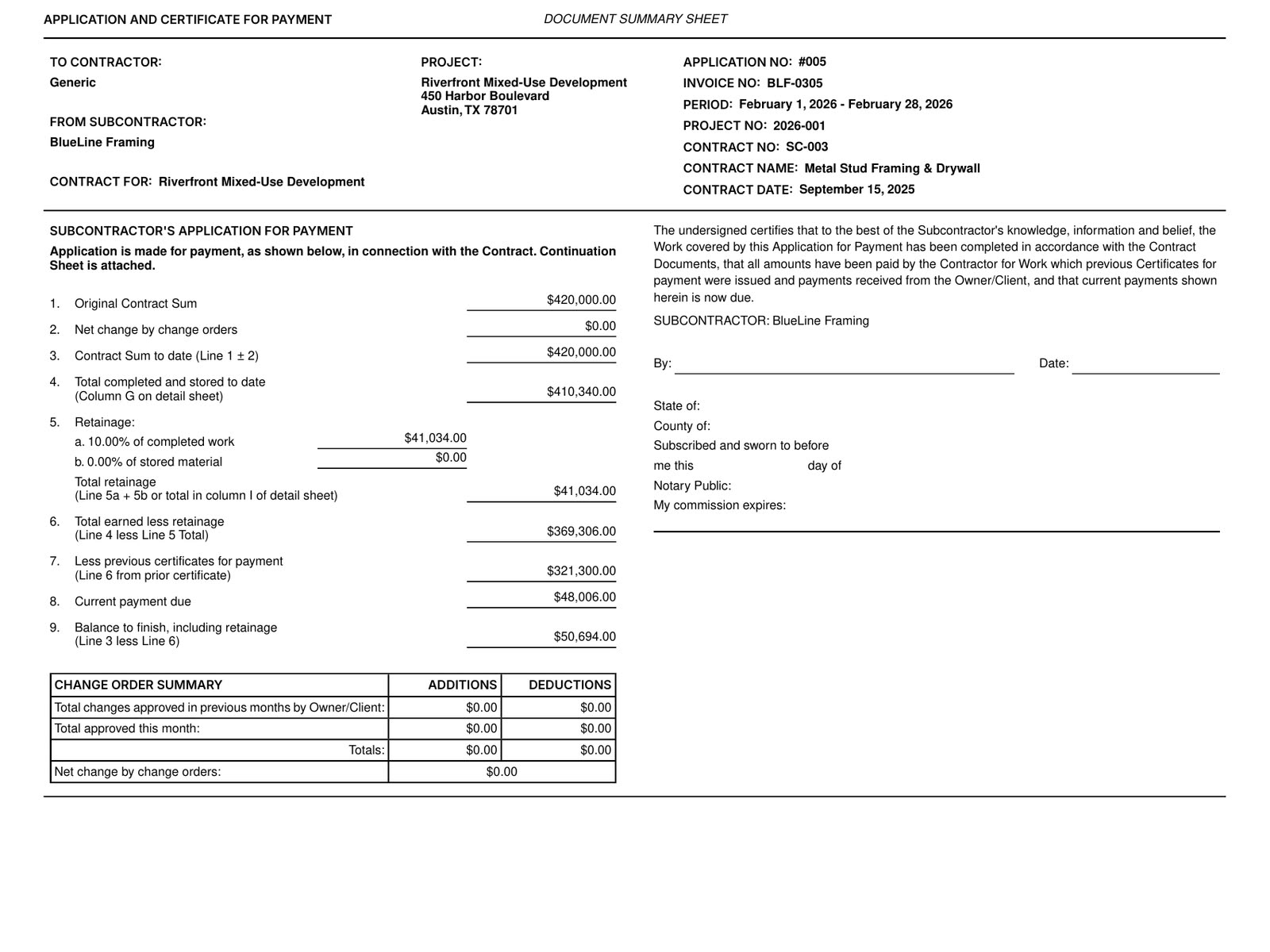
Payment application PDFs ready to send
Download any invoice as a payment application with an AIA-style summary sheet and a detail sheet, plus the attachments and lien waivers you choose.
• The owner wants other columns: pick the columns and save the layout for everyone in your organization
• The lender wants every sub's pay app: Download Pay Applications packages them by billing period
• A number changes after approval: approved PDFs print from the approval snapshot, so a correction means reapproving and downloading a new file
Payments and accounting
Record payments and sync approved invoices
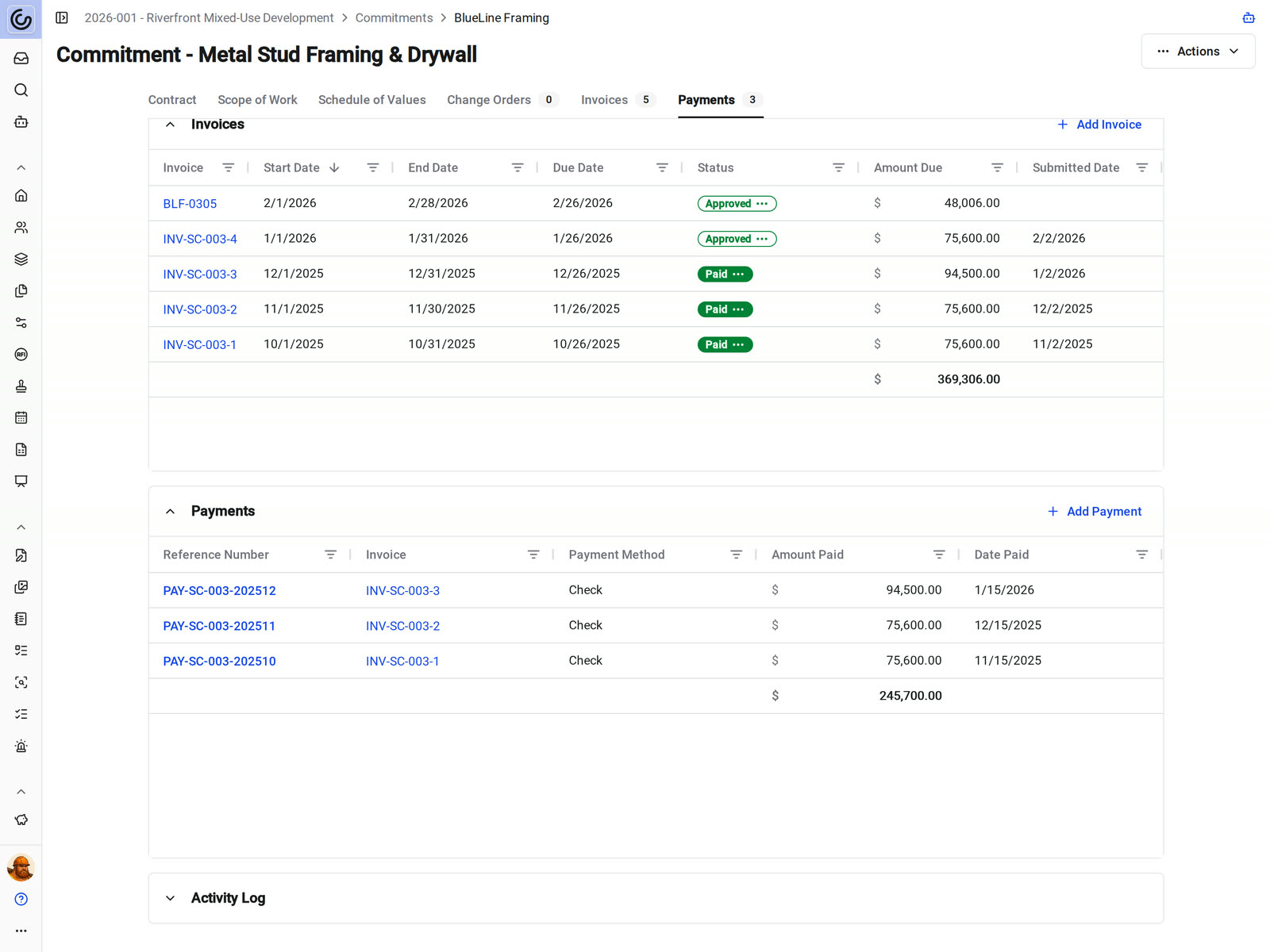
Record each payment by ACH, card, check, cash, or another method and allocate it to approved invoices. When payments cover an invoice's amount due, it moves to Paid. Constructable records payments. It doesn't send money.
• QuickBooks Online: approved owner invoices sync as invoices, approved subcontractor invoices sync as bills, and QuickBooks payments can come back as Constructable payments
• Sage Intacct: approved invoices sync the way your implementation maps them
• Nothing syncs early: draft and under-review invoices stay in Constructable
AI invoice import
Drop in a stack of invoice PDFs
Upload invoice PDFs in My Imports. Constructable's AI matches each one to the project, commitment, SOV lines, and billing period and creates a draft invoice for you to review.
• One invoice in your inbox: attach it to the Agent and use the Import invoice skill
• Before anything is billed: imports only create drafts, and your team still submits and approves each one
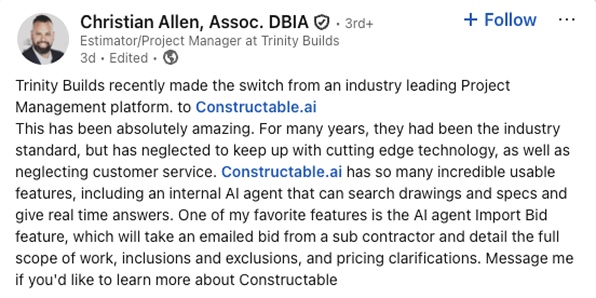
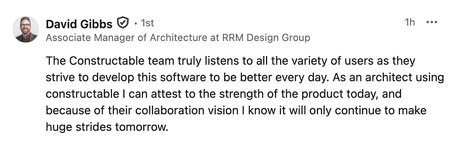
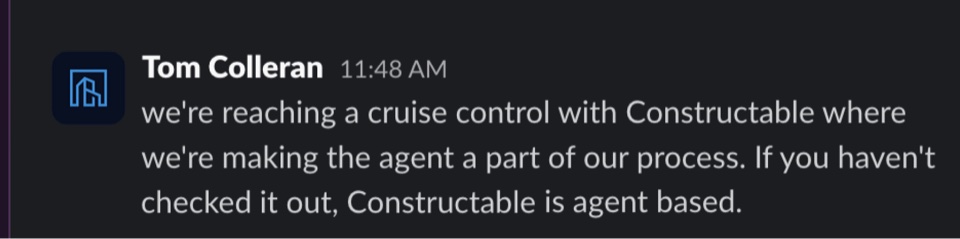
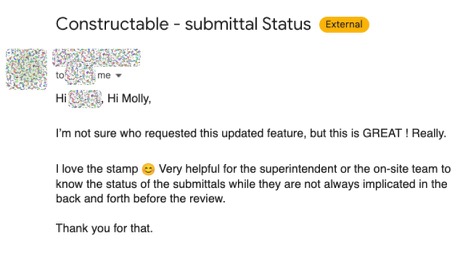
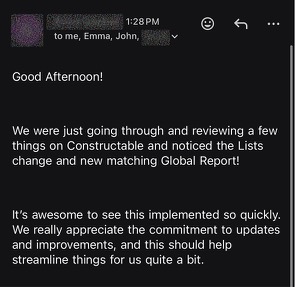
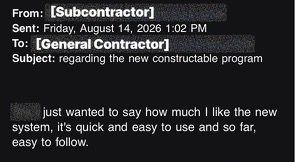
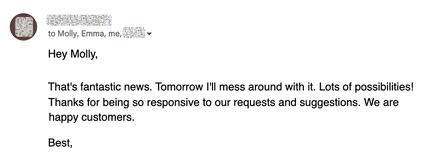
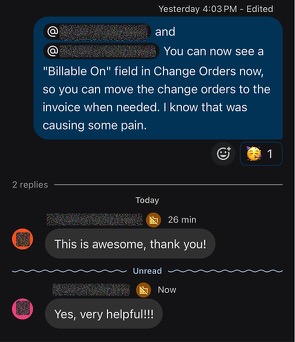
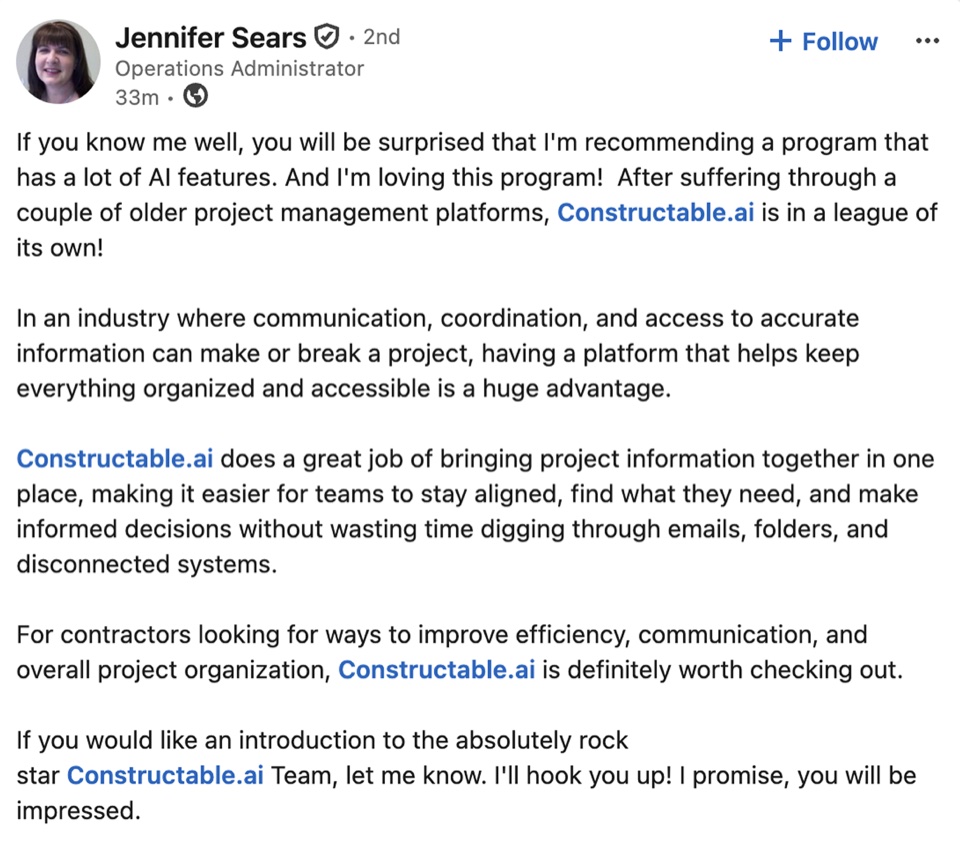
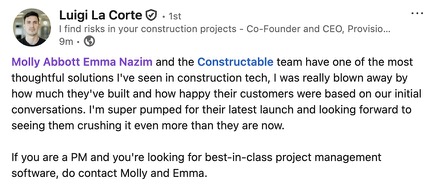
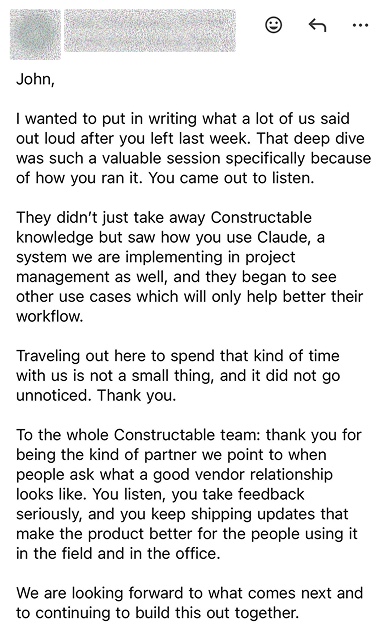
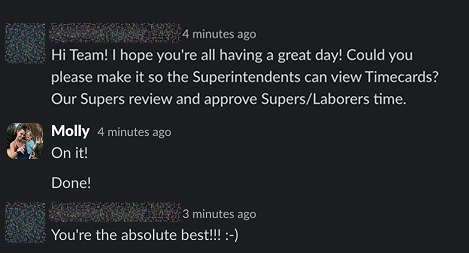
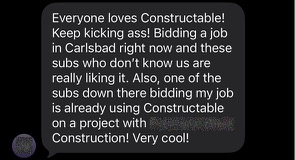
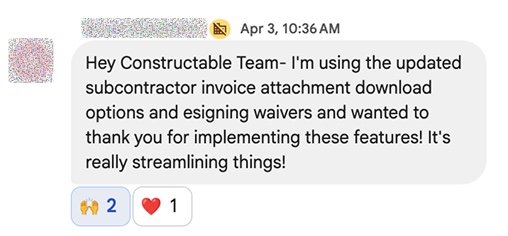
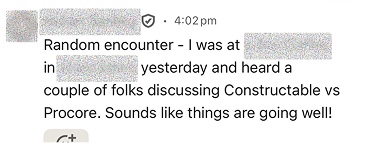
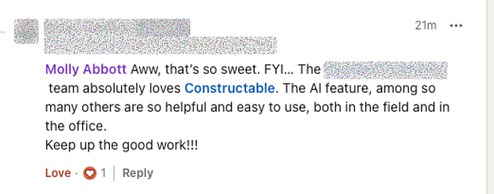
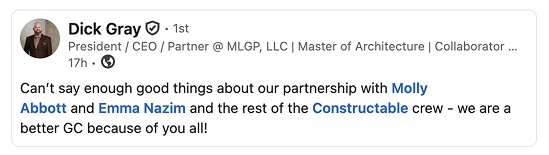
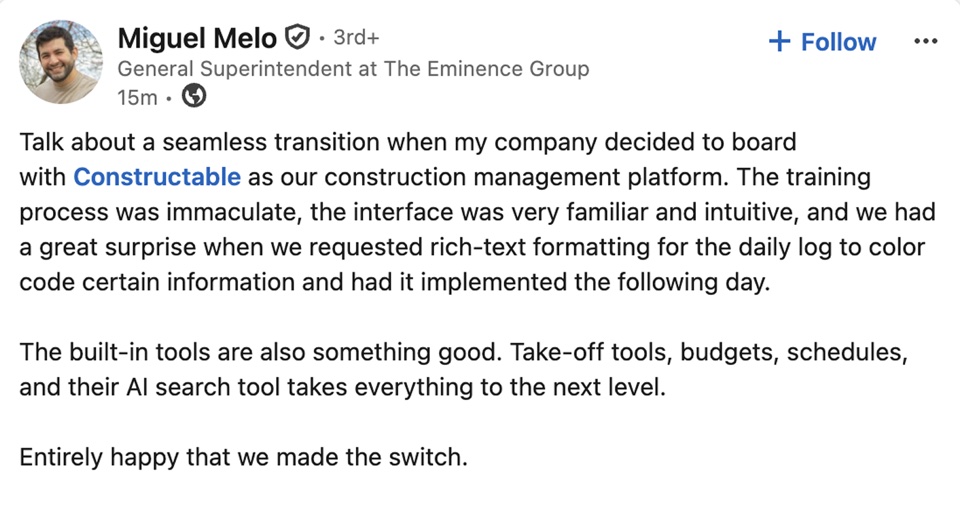
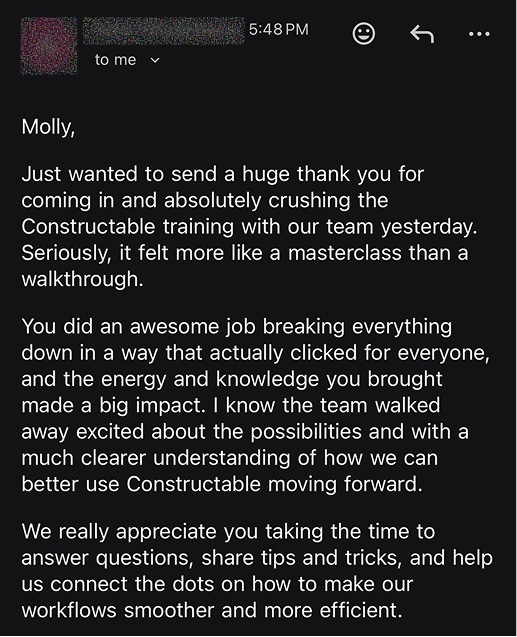
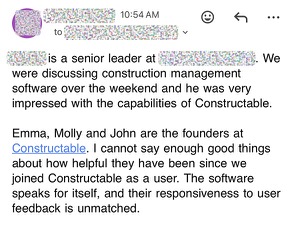
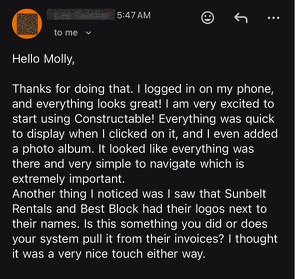
Hear from the GCs building with Constructable
Loved in the office and in the field
Take your drawings anywhere with the Constructable app for iPhone, iPad, and Android.


Close every billing cycle
without chasing pay apps.
Book a 30-minute demo with our team.
WallofHappiness








Frequently Asked Questions
Can subcontractors submit their pay applications directly in Constructable?
How does retainage work, and can I release it all at once?
Can I set up a sequential invoice approval workflow?
Can I collect conditional and unconditional lien waivers with each invoice?
Can I build the owner pay application from my subcontractors' invoices?
What does the payment application PDF look like, and can I customize it?
Does it sync with QuickBooks or Sage Intacct?
Can AI read a PDF invoice and enter it for me?
Do subcontractors have to pay for a seat?
Which plan includes invoicing?
at a glance
with better bids
more time building